Introduction
TikTok is full of audio worth keeping — original sounds, background music, voiceovers, podcast-style clips. The problem is the TikTok app only lets you save videos, not the audio track on its own. This guide walks through exactly how to pull the audio out of any TikTok video and save it as an MP3 file on your phone or computer.
The method works on iPhone, Android, Windows, and Mac. No software to install, no sign-up required.
What you need before starting
You only need two things:
The TikTok video link. This is the URL of the specific video you want to convert. You copy it from the TikTok app using the Share button, then selecting Copy Link. The link looks like https://vt.tiktok.com/xxxxx/ or a longer web URL.
A browser on your device. Safari on iPhone, Chrome on Android, or any browser on desktop. No app download needed.
Step-by-step: Convert TikTok to MP3
Follow these three steps. The whole process takes under a minute once you have the link.
-
Copy the link from TikTok
Open TikTok on your phone or in a browser. Find the video you want. Tap the Share button — it looks like an arrow pointing right. From the share options, tap Copy Link. The link is now in your clipboard.
-
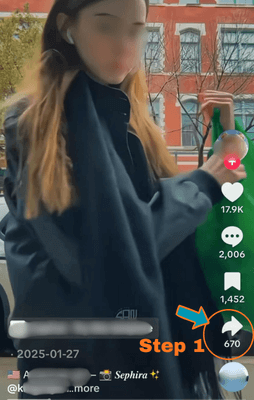
Screenshot showing TikTok Share button and Copy Link option -
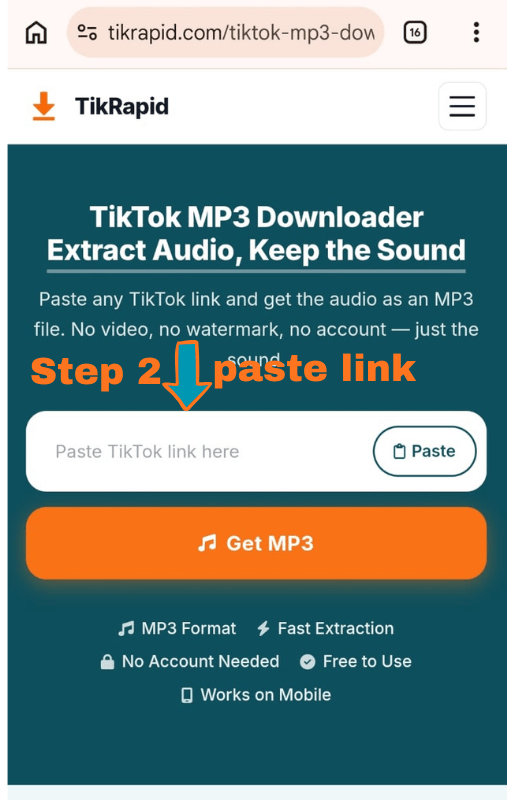
Paste the link into the tool above
Scroll back up to the top of this page. Tap the Paste button in the input field — it reads the link from your clipboard automatically. The tool will start fetching the audio right away. You will see the video thumbnail appear within a few seconds.
-
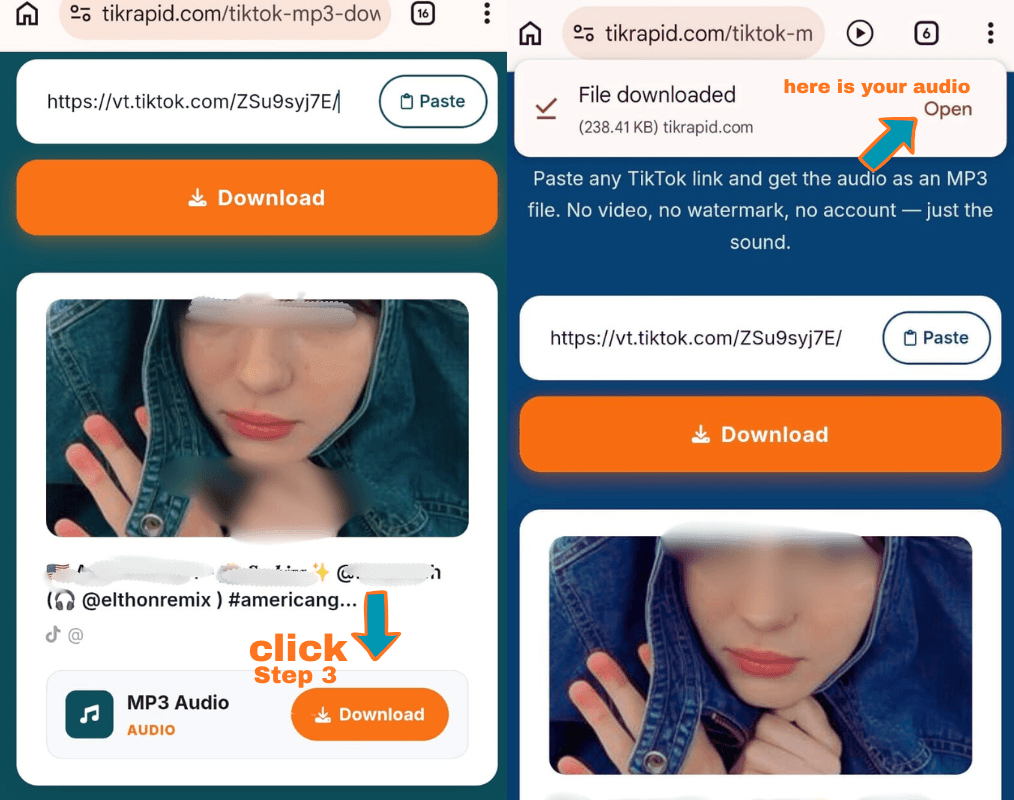
Download the MP3 file
Once the result appears, you will see an MP3 Audio option in the download list. Tap the orange Download button next to it. Your browser handles the rest — the file saves directly to your device.
-
Screenshot showing the MP3 download button in TikRapid results
iPhone and Android specific steps
The core process is the same on both platforms, but where the file ends up is slightly different. Here is what to expect on each.
- Copy the TikTok link from the app
- Open Safari and go to tikrapid.com
- Tap Paste — link fills automatically
- Tap Download next to MP3 Audio
- Tap Download in the Safari popup
- File saves to Files app → Downloads
- Long-press the file → Share → add to Music
- Copy the TikTok link from the app
- Open Chrome and go to tikrapid.com
- Tap Paste — link fills automatically
- Tap Download next to MP3 Audio
- File saves to Downloads folder
- Open your file manager to find it
- Share it to any music app directly
A note on audio quality
The MP3 file you get is extracted directly from the TikTok video. The audio quality depends entirely on how the original video was recorded — not on the tool you use to extract it.
Most TikTok videos recorded on a smartphone in the last few years have clear, usable audio. Videos with loud background music, poor microphone setup, or heavy compression may sound lower quality — but that reflects the original recording, not the download process.
Common issues and how to fix them
The link is not working
Make sure you copied the full URL directly from TikTok using the Share → Copy Link option. Short links from third-party apps sometimes strip important parts of the URL. If the error persists, try opening the video in a browser and copying the URL from the address bar.
No MP3 option appears
Some TikTok posts are photo slideshows rather than videos. A photo slideshow does not have an audio track that can be extracted as a standalone MP3. Check that the post is a video before trying to extract audio.
The file saves as a video, not MP3
Make sure you are tapping the Download button next to the MP3 Audio row specifically — not the HD or No Watermark video options. Each row downloads a different format.
iPhone says the file type is not supported
This sometimes happens when Safari tries to play the file instead of downloading it. Tap and hold the Download button and select Download Linked File. This forces Safari to save the file rather than play it.
Ready to extract the audio?
Scroll up and paste your TikTok link — or visit the TikTok MP3 Downloader directly.